

Email Tracking Consent
Track email opens and clicks only for recipients who said yes, in the countries that require it, without changing who gets your emails.
Must Read
- Populate the consent attributes before you switch on consent in a country. Any recipient there without a value stops being tracked the moment you save.
- You're responsible for collecting and proving consent. WebEngage acts on the value of the attribute.
- This article explains how the feature works. It isn't legal advice, so check your setup with your legal team.
Why this exists
France and Italy now treat the open-tracking pixel in your emails the same way they treat website cookies. If you track opens for recipients in these countries, you need their consent first.
An open pixel is a tiny, invisible image in your email. When a recipient opens the email, the image loads from a server and records that this person opened it. Regulators see this as reading information from the recipient's device, which needs consent under the ePrivacy rules.
What both regulators expect
- Consent to email is not consent to track. A newsletter opt-in on its own doesn't cover open tracking.
- No answer means no. If a recipient hasn't given tracking consent, you can't track their opens.
- Opting out of tracking is separate from unsubscribing. Recipients must be able to stop tracking and still get your emails.
How France and Italy differ
| France (CNIL) | Italy (Garante) | |
|---|---|---|
| Guidance | Recommendation on tracking pixels, April 2026 | Provision n. 284, adopted 17 April 2026, published 29 April 2026 |
| Compliance date | Applies to addresses collected from 14 April 2026. Existing contacts had to be informed by 14 July 2026. | 29 October 2026, six months after publication |
| Collecting consent | Tracking consent is collected separately from marketing consent | Tracking consent can be bundled with marketing consent, if the request clearly mentions tracking |
| Click tracking | Tracked links aren't directly covered by the recommendation | The provision covers pixels, not tracked links |
Both regulators allow a few narrow uses without consent, such as security emails. These exceptions are interpreted strictly, so check with your legal team before relying on one.
Opens or clicks?The rules are about the open pixel, so open tracking is what you need to gate. Click tracking consent is available as an option if your legal team wants to go further.
How it works
You choose, separately for opens and clicks, which countries need consent. For each email, WebEngage checks the recipient's country and consent at the moment of sending. Delivery is never affected: every recipient still gets the email.
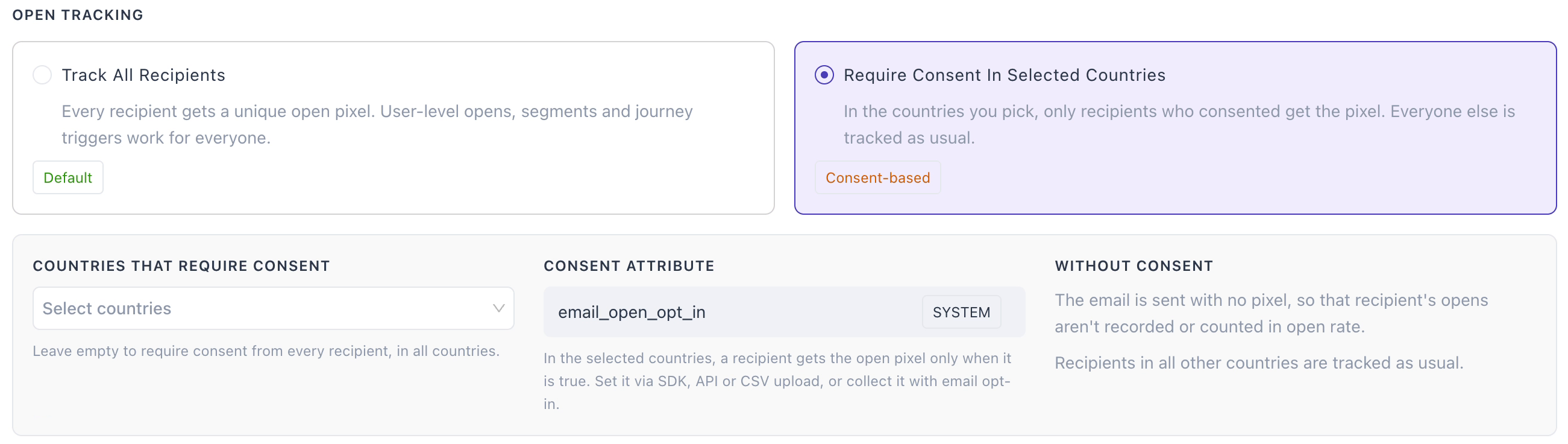
Two settings, one each for opens and clicks
- Track All Recipients (default): every recipient is tracked, as today.
- Require Consent In Selected Countries: recipients in the countries you pick are tracked only if they've consented. Everyone else is tracked as usual.
Consent attributes
| Tracking | Attribute | Type | Tracked when |
|---|---|---|---|
| Opens | email_open_opt_in | Boolean, system attribute | Value is true |
| Clicks | email_click_opt_in | Boolean, system attribute | Value is true |
What each recipient gets
| Recipient's country | Consent value | Opens (pixel) | Clicks (links) |
|---|---|---|---|
| Not in your selected list | Any | Tracked | Tracked |
| In your selected list | true | Tracked | Tracked |
| In your selected list | false or not set | Email sent with no pixel | Email sent with plain links |
| No country set | true | Tracked | Tracked |
| No country set | false or not set | Email sent with no pixel | Email sent with plain links |
The Clicks column applies only if you've turned on consent for click tracking. Otherwise clicks are tracked for everyone.
Good to know
- Country comes from the user's Country system attribute.
- No country set: the user is treated as needing consent.
- Empty country list: if you turn on consent and leave the list empty, every recipient in every country needs consent.
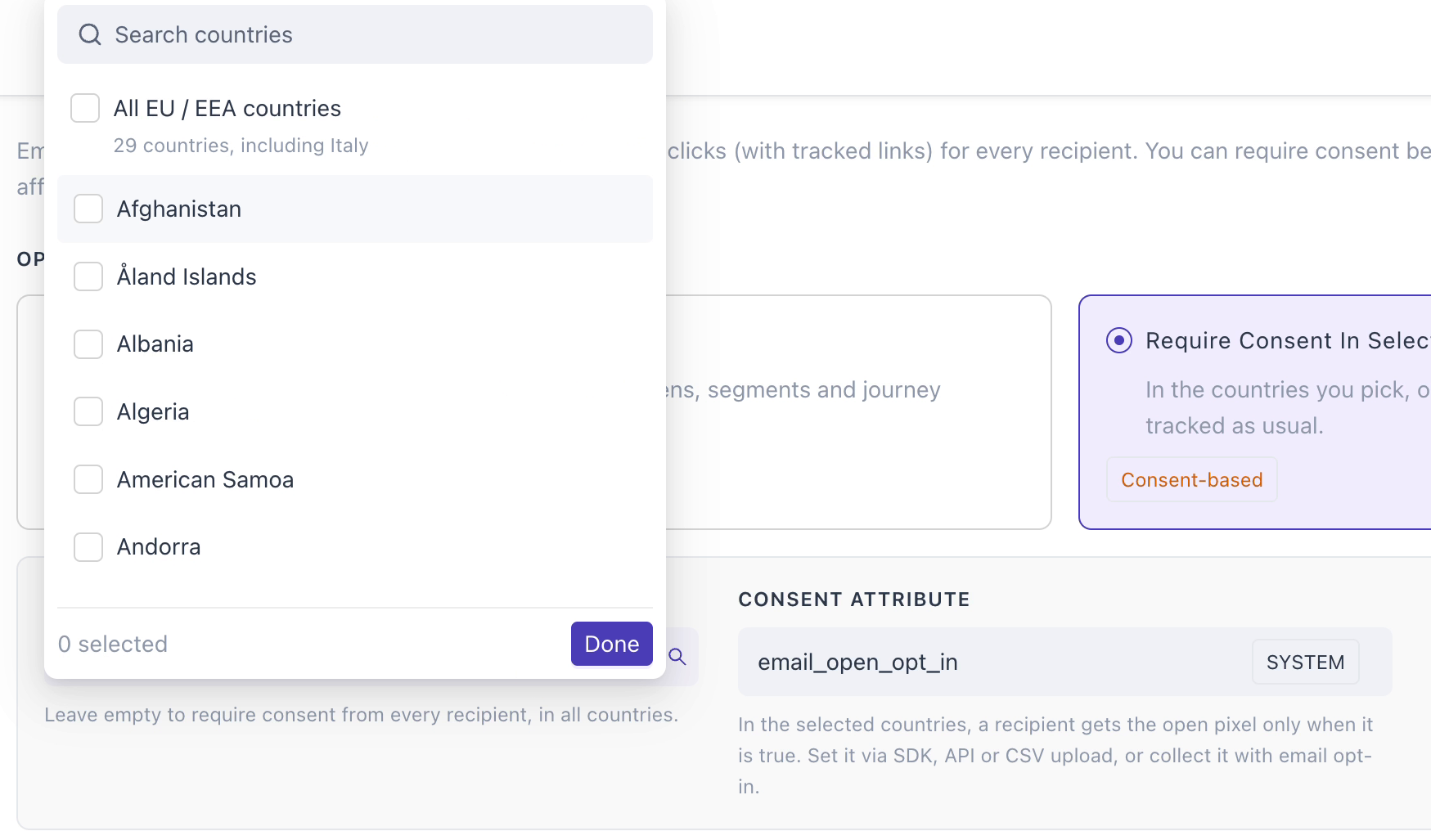
- All EU / EEA countries: use this shortcut in the country list to select them all at once.
- Read at send time: consent is checked when each email goes out. The next email reflects any change you make.
- Every campaign type: this applies to one-time, recurring, triggered, journey and transactional emails.
Click to enlarge
Set it up
Set up consent in four steps. Do steps 1 and 2 before you save the setting, so tracking doesn't drop for recipients who have already said yes.
- Populate the consent attributes
- Set
email_open_opt_intotrueorfalsefor your users through the Users REST API or a CSV user upload. Setting it through the SDK and the journey set-attribute block will follow in an upcoming release. - If you plan to gate clicks too, set
email_click_opt_inthe same way. - Already storing consent under another name, like
OpenTrackingSubscription? Map it toemail_open_opt_inwhen you send data to WebEngage.
- Set
- Check that Country is filled in
- WebEngage uses the Country system attribute to decide who is in a selected country.
- Users with no country are treated as needing consent, so fill it in wherever you can.
- Turn on consent for open tracking
- Go to Channels > Email and scroll to Email Tracking.
- Under Open Tracking, select Require Consent In Selected Countries.
- In Countries that require consent, pick your countries, for example France and Italy.
- Repeat under Click Tracking if your legal team wants clicks gated too.
- Click Save.
- Keep consent up to date
- Whenever a recipient gives or withdraws consent, update the attribute through the API or CSV.
- Give recipients a way to switch off tracking without unsubscribing, such as a toggle in your preference center or a landing page that updates the attribute.
Click to enlarge
TipUsers with no country set are treated as needing consent. Filling in Country lets recipients outside your selected countries keep being tracked.
What changes in reports, segments and journeys
Opens from untracked recipients aren't recorded anywhere, so anything built on opens sees less data. The same applies to clicks if you gate click tracking.
| Where | What you'll see |
|---|---|
| Campaign reports | Open rate is calculated on all recipients, so it can look lower in proportion to how many recipients weren't tracked. |
| A/B tests | Variations picked by open rate are judged on tracked recipients' opens only. |
| Segments | Users who weren't tracked won't qualify for segments based on email opens. |
| Journeys | An untracked recipient follows the "not opened" path in open-based branches and triggers, even if they read the email. |
Plan around itIn journeys sent to selected countries, prefer conditions based on clicks (if you're not gating them), conversions or website and app events over email opens.
FAQs
Will recipients without consent still get my emails?
Yes. They get the same email with no open pixel, and with plain links if you gate clicks. Delivery isn't affected.
Does the ESP send this consent to WebEngage?
No. Your ESP doesn't hold tracking consent. You collect it and pass it to WebEngage through the API or CSV.
I'm moving to WebEngage from another platform. What happens to consent I already have?
Export it from your consent platform or previous provider, and import it as email_open_opt_in (and email_click_opt_in if needed) before you turn on the setting.
Are recipients outside France and Italy affected?
No, as long as their Country is set and isn't in your selected list. They're tracked as they are today.
Do I need consent to track clicks?
The French and Italian guidance is about the open pixel. Click tracking consent is optional. Check with your legal team before you turn it on.
A recipient withdrew consent. When does tracking stop?
From the next email sent after you update their attribute, because consent is checked at send time.
Can recipients opt out of tracking but keep getting emails?
Yes, and both regulators expect you to offer this. Add a tracking toggle to your preference center or landing page that sets the attribute to false.
Official references
| Source | What it is |
|---|---|
| Garante: Provision n. 284 of 17 April 2026 | Italy's guidelines on tracking pixels in email (in Italian) |
| CNIL: Tracking pixels in email | France's announcement of the recommendation (in French) |
| CNIL: Recommendation on tracking pixels (PDF) | Full text of the French recommendation |
| CNIL: Questions and answers | CNIL's FAQ on applying the recommendation |
Updated about 22 hours ago