

Recommendations
Recommendations transform a generic catalog into a curated journey, ensuring every user interaction is purposeful. By leveraging distinct strategies—ranging from global trends and item relationships to individual user affinities—you can deliver the most relevant content at the exact moment of intent.
By analyzing deep behavioral signals such as views, purchase history, and engagement patterns, these strategies allow you to,
- Boost Conversions: Use Relevant Items and Personalized suggestions to place the right product in front of the right buyer.
- Increase Average Order Value (AOV): Utilize "Frequently Bought Together" logic to encourage multi-item checkouts.
- Enhance Retention: Use Collections to mirror a user’s specific preferences, making the platform feel uniquely built for them.
- Maintain Strategic Control: Employ Custom Recommendations to align your business goals—like clearing inventory or promoting high-margin items—with the user experience.
Ultimately, whether driven by WebEngage’s AI or your own custom-uploaded data, these recommendations reduce "choice paralysis" and drive long-term customer loyalty.
Recommendation Strategy Types
WebEngage offer these 5 types of recommendation strategies.
Top Items
This strategy relies on popularity or aggregate data rather than individual user behavior. It is the "social proof" engine of your site.
How it works: The system tracks metrics like sales volume, view counts, or velocity (rate of change) over a specific window (e.g., last 24 hours for "Trending" or last 30 days for "Best Sellers").
Best For: New users with no browsing history (Cold Start problem) or homepages where you want to showcase your strongest products.
Use Cases: "Best Sellers," "Most Popular in Electronics," "Trending This Week."
Relevant Items
This is based on the "People who bought X also bought Y" logic. Also known as Item-to-Item collaborative filtering. It looks for statistical correlations between products.
How it works: It analyzes transaction logs to find pairs of items that appear in the same cart or session more often than would happen by chance.
Best For: Product Detail Pages (PDPs) and Cart pages to increase the Average Order Value (AOV) through cross-selling.
Use Cases: "Frequently Bought Together," "Complete the Look," "Customers also viewed."
Personalized
This shifts the focus from the product to the individual's profile. It finds "lookalike" users to predict interest - based on common product interactions. Also known as User-to-User collaborative filtering.
How it works: If User A and User B both bought a camera and a tripod, and User A then buys a specific lens, the system will suggest that lens to User B. It assumes that people who agreed in the past will agree in the future.
Best For: Email marketing, app push notifications, and "Discovery" sections on the home feed.
Use Cases: "Recommended for You," "Based on your recent history."
Collections
This strategy combines user context with catalog metadata. It’s about filtering the vast catalog into a curated "boutique" for the user. Learn more
How it works: It uses user's known affinity or current context to filter product catalog on (for example category, brand, city, price point). If a user consistently buys "Sustainable" and "Organic" labels, the collection will filter the catalog to show the top items within those specific tags.
Best For: Keeping users engaged within their favorite niches.
Use Cases: "Top Picks in Women's Running Shoes," "New Arrivals in Sci-Fi.", Personalized Newsletters
Dynamic variables for collections and recommendation slugs
The Recommendations API supports dynamic variables for collections and recommendation slugs, enabling more personalized recommendation requests.
You can pass:
- Static values
- User attributes
- Event-based tokens
This allows recommendations to be generated based on user context, recent events, or predefined values.
Supported scenarios include:
- Relevant item recommendations
- Personalized recommendations
- Collection-based recommendations using static values or dynamic variables
NoteAccess to dynamic variables is controlled through a dedicated permission.
Custom Recommendations
While AI is powerful, businesses often have specific needs (like clearing overstock or promoting high-margin items) that AI might not prioritize. Custom Recommendations a "Bring Your Own Recommendations" (BYOR) approach.
Full Control: You bypass the WebEngage algorithms entirely. This is useful if you have an in-house data science team that has built a proprietary model.
Data must be uploaded in a structured format (Product ID to Recommended IDs mapping). Since this is external, you are responsible for the Data Freshness—meaning you must re-upload the file regularly to reflect inventory changes.
Use Cases:
- Promotional Tie-ins: Recommending a specific brand during a sponsored event.
- Inventory Clearing: You need to push stock that isn't necessarily "popular" yet.
- Manual Bundling: Expert-curated kits that don't rely on past data.
Create Recommendation Strategies
Recommendations Templates
WebEngage offers intuitive experience to help you choose the right product recommendation template. Also makes it simpler for marketers and product teams to implement powerful recommendation strategies.
Start with a template that matches your use case or create your own. While creating your own, choose the right recommendation Type.

You will be presented with a form on LHA and guide texts / infographic on RHS.
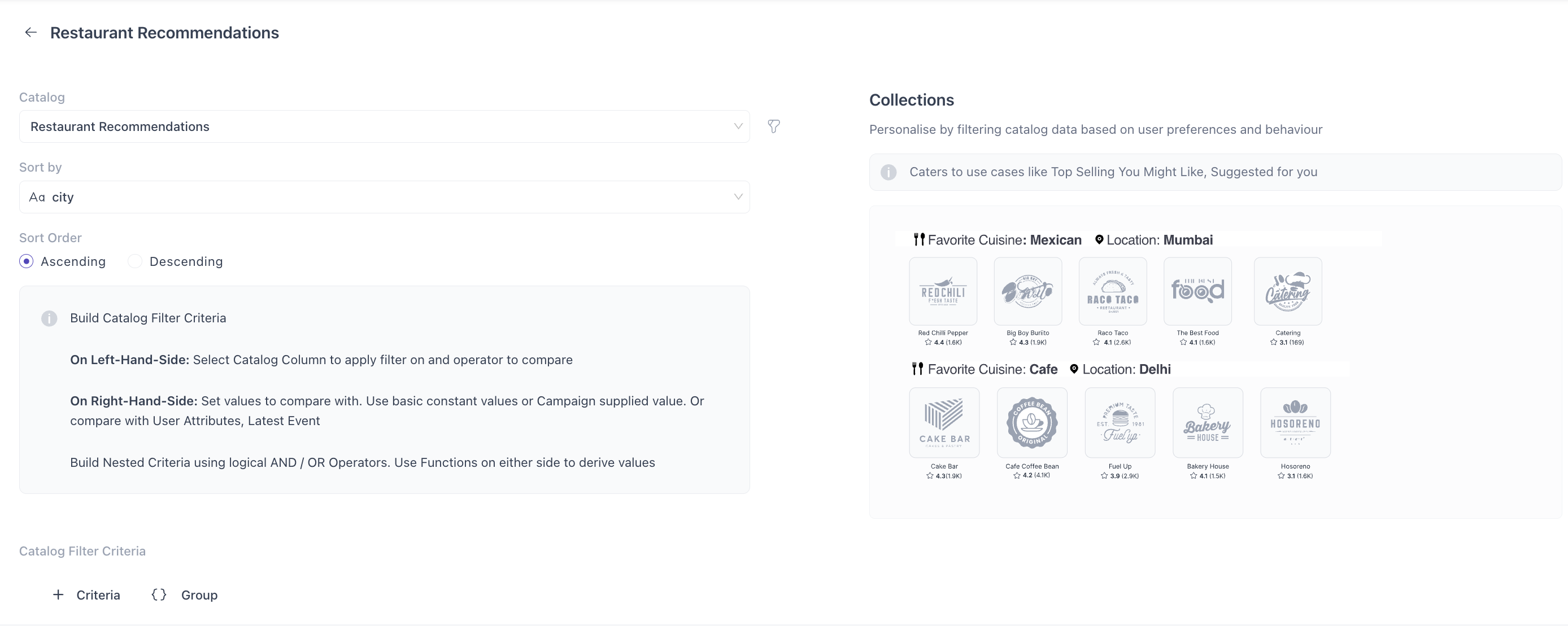
Follow these steps to create a recommendation strategy:
- A default name is auto-generated, do rename it to something more meaningful for easy identification.
- Choose catalog that would be source of product data for recommendations. Make sure the catalog has necessary events mapped to it.
- Select the event on which you want to run your recommendation strategy (example: Added To Cart). The catalog you select must have at least one event mapped to it.
- Select Look Back Period i.e. Define how many days of user data the recommendation engine should analyze to generate relevant product suggestions.
- Select Backup Strategies If you want to recommend products based on general trends (e.g., top selling, most viewed), choose Backup Strategies as your strategy type.
- If you're creating recommendations for Collections, specify the selection criteria to ensure the right group of products is shown.
Note
- We automatically refresh the data in our recommendation engine at a periodic interval so that your Personalized as well as Static recommendation strategies are always up to date.
- Our recommendation engine would generate 5 items as an output in most cases. If you would like to tweak this configuration, please reach out to [email protected].
- You can create up to 10 recommendation strategies per project by default. Contact your Customer Success Manager or [email protected] if you want to increase this limit for your project.
- The Exclude Event dropdown will only appear as an option if you choose the Personalised recommendation strategy.
Create-Your-Own Strategy
If your use case doesn’t match a predefined template, you can start from scratch.
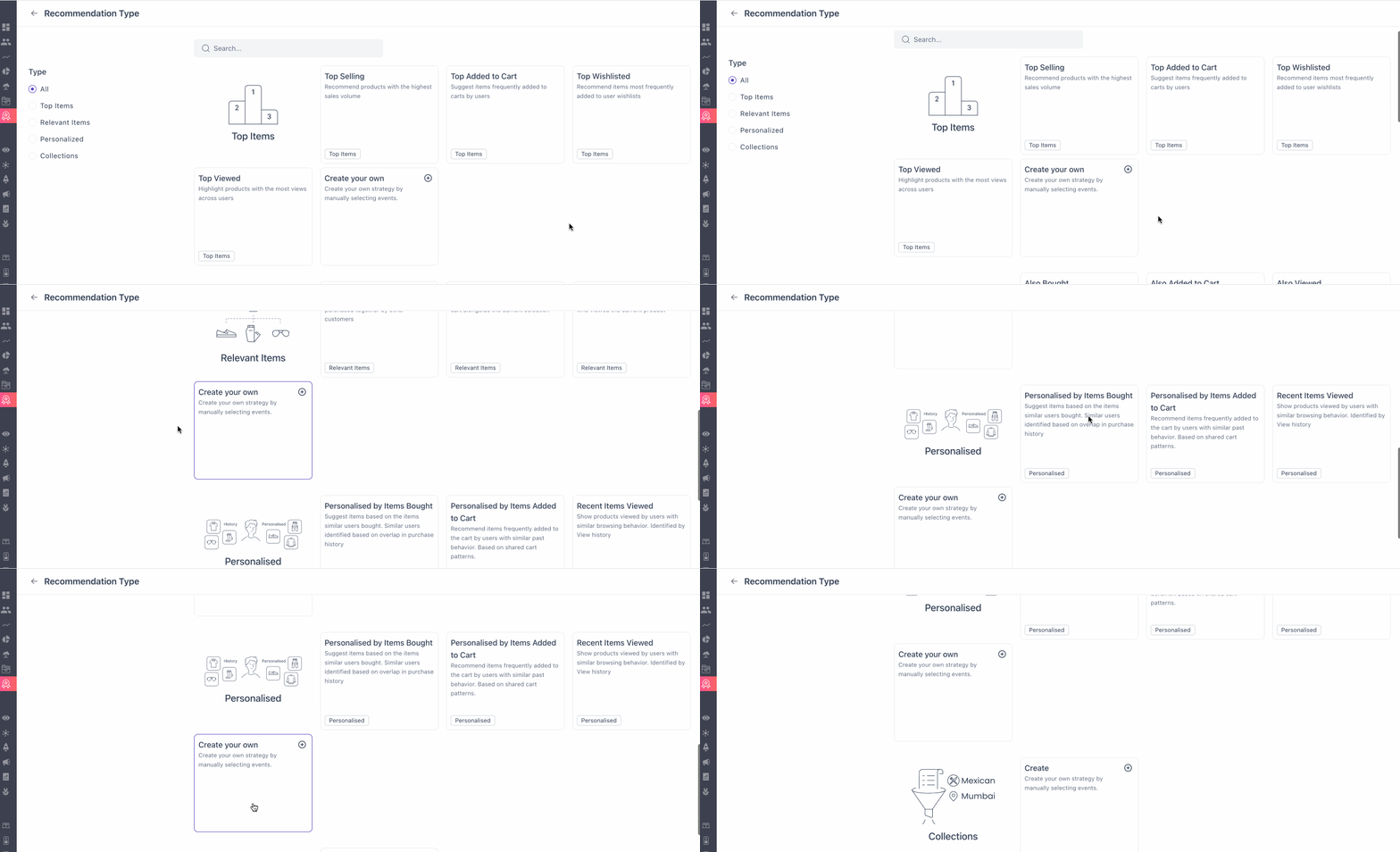
Using your own events and conditions (such as clicks, purchases, or category visits), you can set up a completely customized flow tailored to your business needs. This option gives advanced users the flexibility to design highly specific recommendation experiences that align with unique goals or user journeys.
Together, these updates are designed to reduce setup time, provide more clarity during template selection, and give you both ready-made and flexible options to craft impactful recommendation campaigns.
Preview Recommendations
We’ve added powerful new features to enhance how you configure and preview product recommendation blocks in WebEngage.
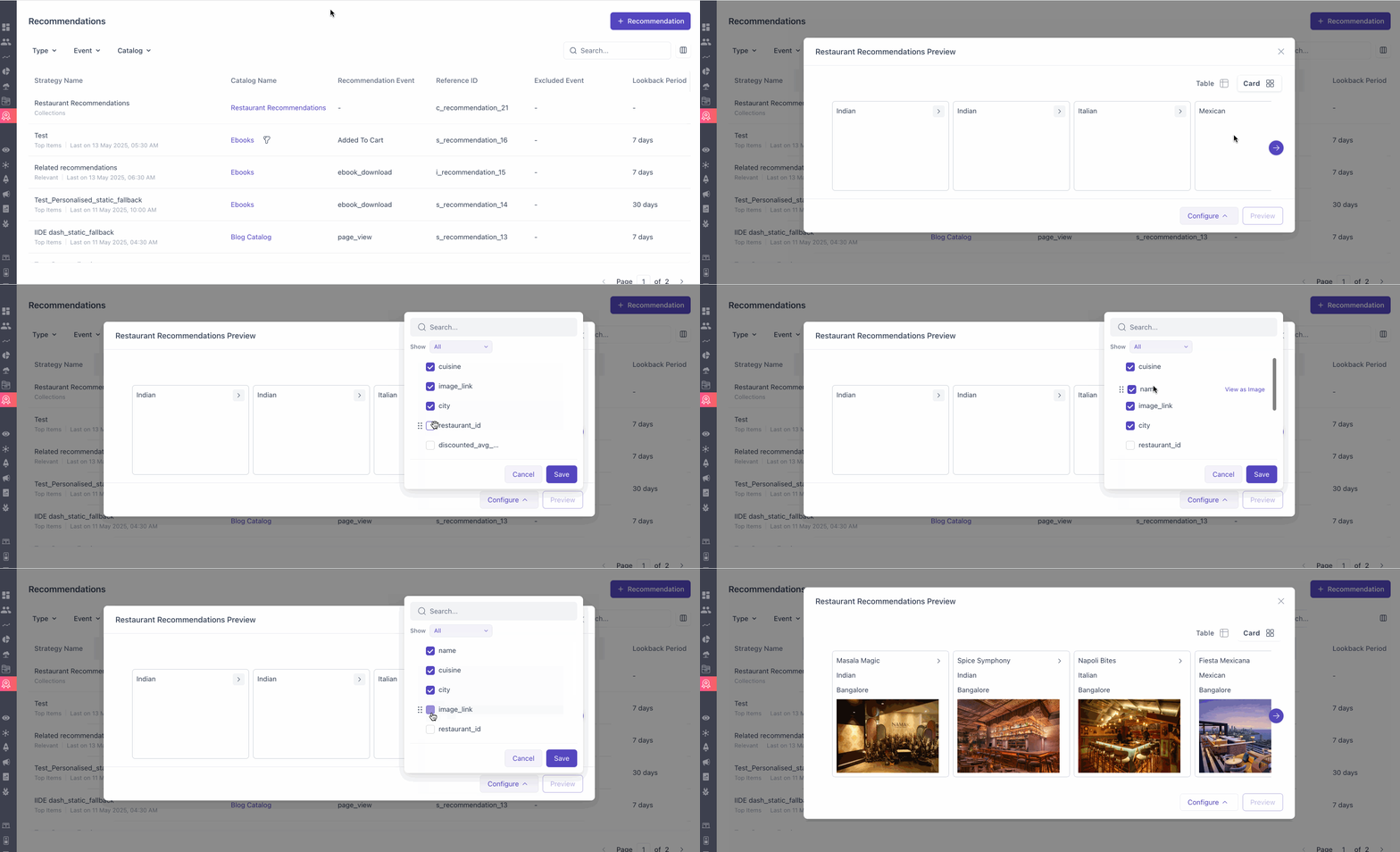
- Card View: Get a real-time visual simulation of how the recommended products would appear to your end users.
- Rearrange Columns: Use drag-and-drop functionality to easily arrange and customize layout of your preview (card and table view) as needed.
- Image Mapping: Within the Card View, select a specific column from your product catalog to be used as the image link in the recommendation card. This gives you more control over how visuals are displayed, ensuring consistency with your product feed.
- Persistent Configurations: Once you set up a view, it’s automatically saved for that recommendation. This means you won’t have to reconfigure layouts each time you return to preview the same recommendation.
- Expandable Cards with Metadata: Each recommendation card is now expandable to reveal additional context, including:
- Strategy type (e.g. Personalized, Relevant, etc.)
- Recommendation source (Primary or Fallback)
- Reference ID for tracking and debugging
Create Custom Recommendations
You can create and deliver your own recommendations using an API.
Manual or Custom Recommendation refers to a setup where the recommendations are fully provided by the client, based on a file upload (currently supported only in CSV format). These recommendations are not influenced or generated by WebEngage’s AI systems. Clients are responsible for maintaining the accuracy, formatting, and quality of the data as per the required specifications.
Please note: "Manual" and "Custom" recommendations are two terms used interchangeably for this process. You can find detailed instructions for configuring Custom Recommendations in our Technical Documentation.
Fallback Recommendations
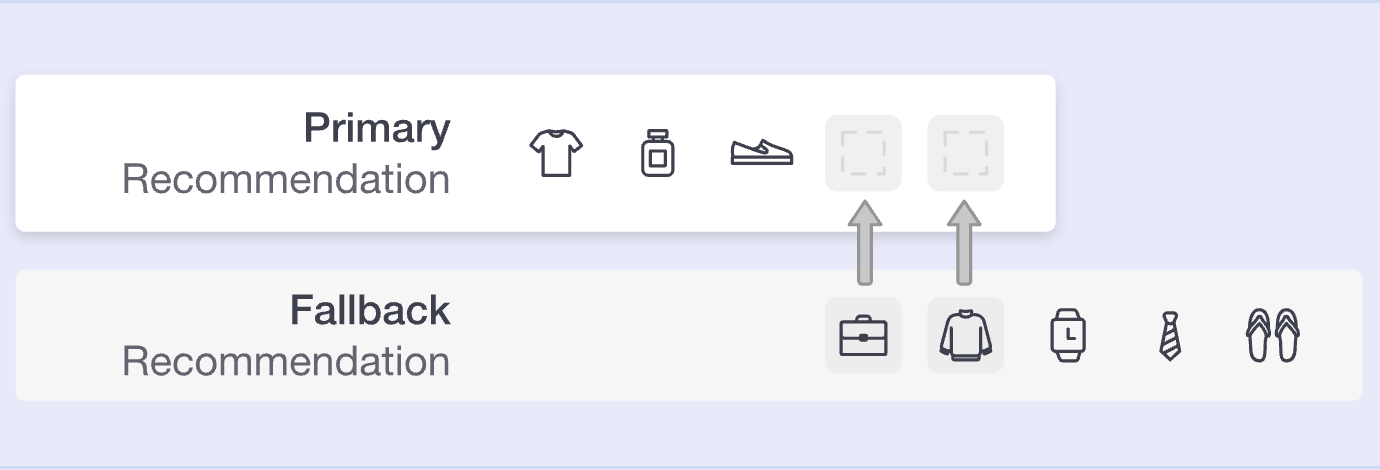
Fallback Recommendations ensure your users always see relevant suggestions, even if your main recommendation doesn’t have enough items. This feature allows you to set up a primary recommendation strategy with up to three fallback options, so if the main one falls short, the system automatically uses the backups in the order you set.
Fallback recommendations are regular recommendations you've already set up, which can now serve as a backup when your primary recommendation fails to produce results. This means that if a primary recommendation can’t provide any suggestions, the fallback recommendation steps in, ensuring your users always see relevant options.
How to set up Fallback Recommendations?
Once you’ve set up all the above options i.e. catalog, type, recommendation, strategy etc. your final option will be to set up your ‘Backup Strategies’.
Note: You can add up to 3 backup recommendations as per priority in this dropdown.
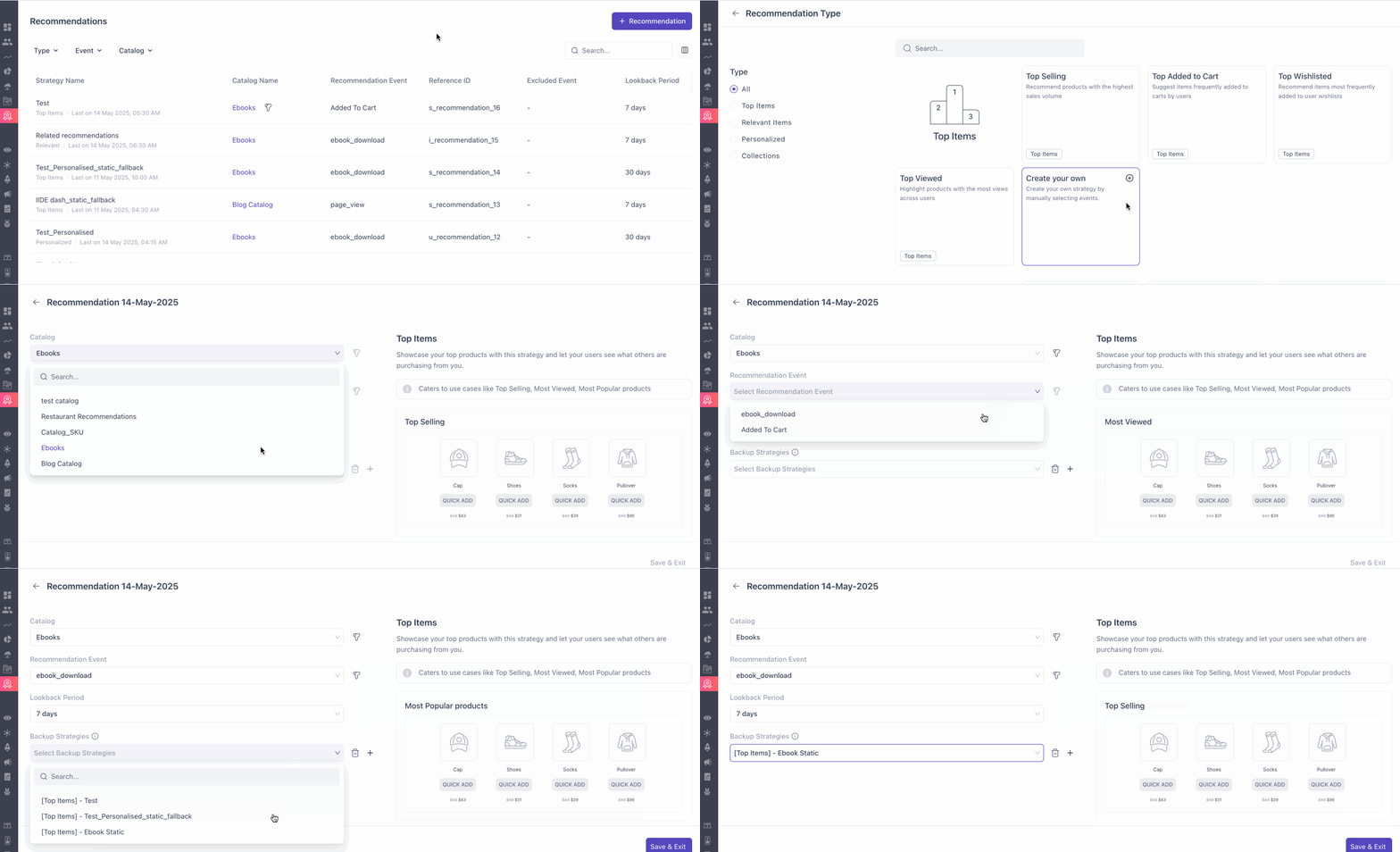
Recommendations will pull items from the primary first, then fall back to each backup in your specified order.
NoteAs Collections are created with specified criteria by users, there is no option to configure fallback strategies.
Avoiding Duplicates
Our system automatically removes duplicate items across recommendations to keep the list unique and relevant.
Compatibility of Fallback Recommendations
- Relevant Item recommendation: You can choose from Relevant Item, Personalized, or Static recommendations as backups.
- Personalized recommendation: You can add Personalized or Static recommendations as backups.
- Static recommendation: The only fallback allowed here is another Static recommendation.
With Fallback Recommendations, you have the flexibility to ensure dynamic, reliable recommendations for users, making it easy to handle gaps in item availability.
Preview Recommendation Output
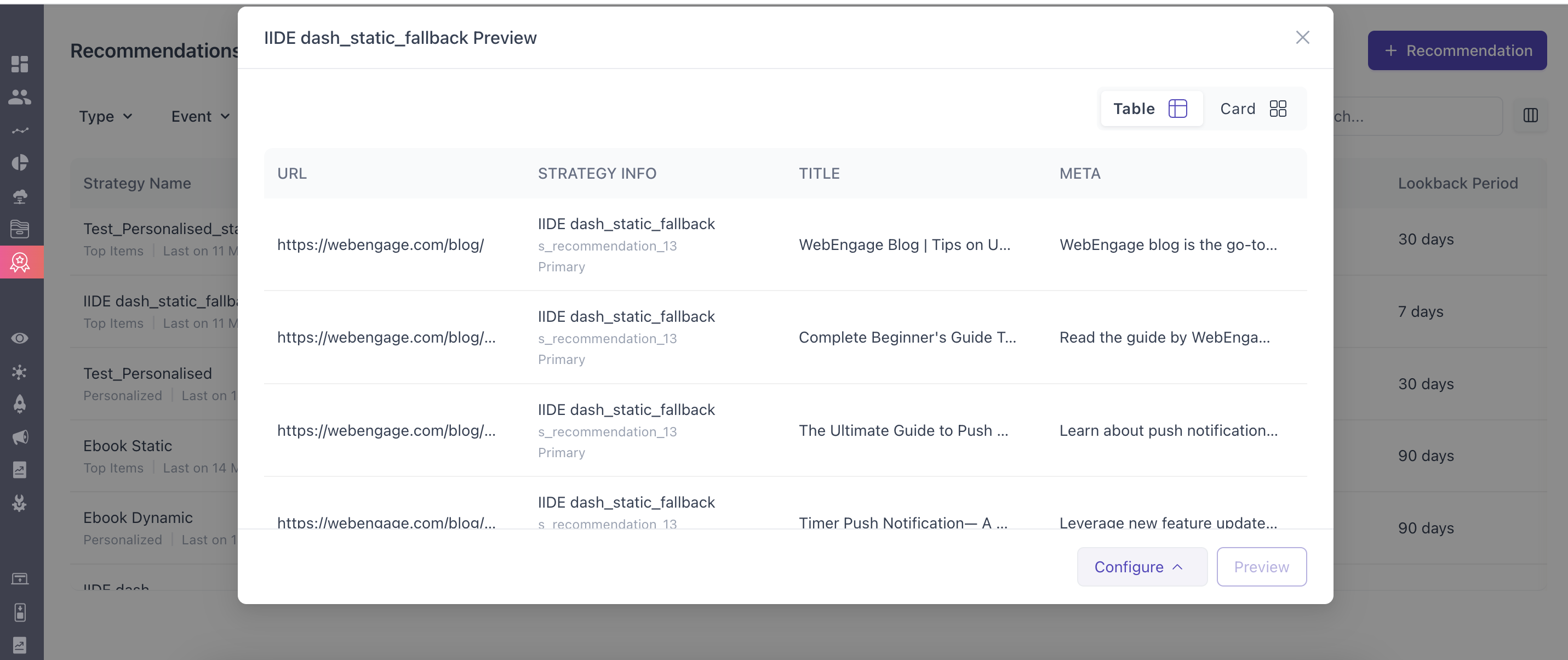
View the list of recommendation strategies and select the Preview action to view the output of your recommendation strategy for a user.
Deleting a Recommendation
In case you want to delete a recommendation, first check if it’s used as a backup if it is you will not be able to delete, unless it has been removed.
Updated 3 months ago