

Derived Attributes
Derived Attributes let you create and store dynamic user data that updates automatically based on user actions or external uploads.
Unlike static or custom attributes, derived attributes change over time and reflect real-time user behavior such as average order value, total spend, or most purchased category.
They help you build smarter segments, and personalize communication.
Why Use Derived Attributes?
Traditional user attributes such as name, city, or subscription type remain static and rarely change. However, businesses often need behavior-based values that evolve with user activity, such as:
- Customer Lifetime Value (CLV)
- Total number of purchases
- Average spend per order
- Most frequently purchased product category
Derived attributes make this possible by automatically calculating and refreshing these metrics for each user.
Use Case: Measuring User Spending Behavior with Derived AttributesTo understand what percentage of a user’s total spending goes toward a specific category, such as “Fashion.”
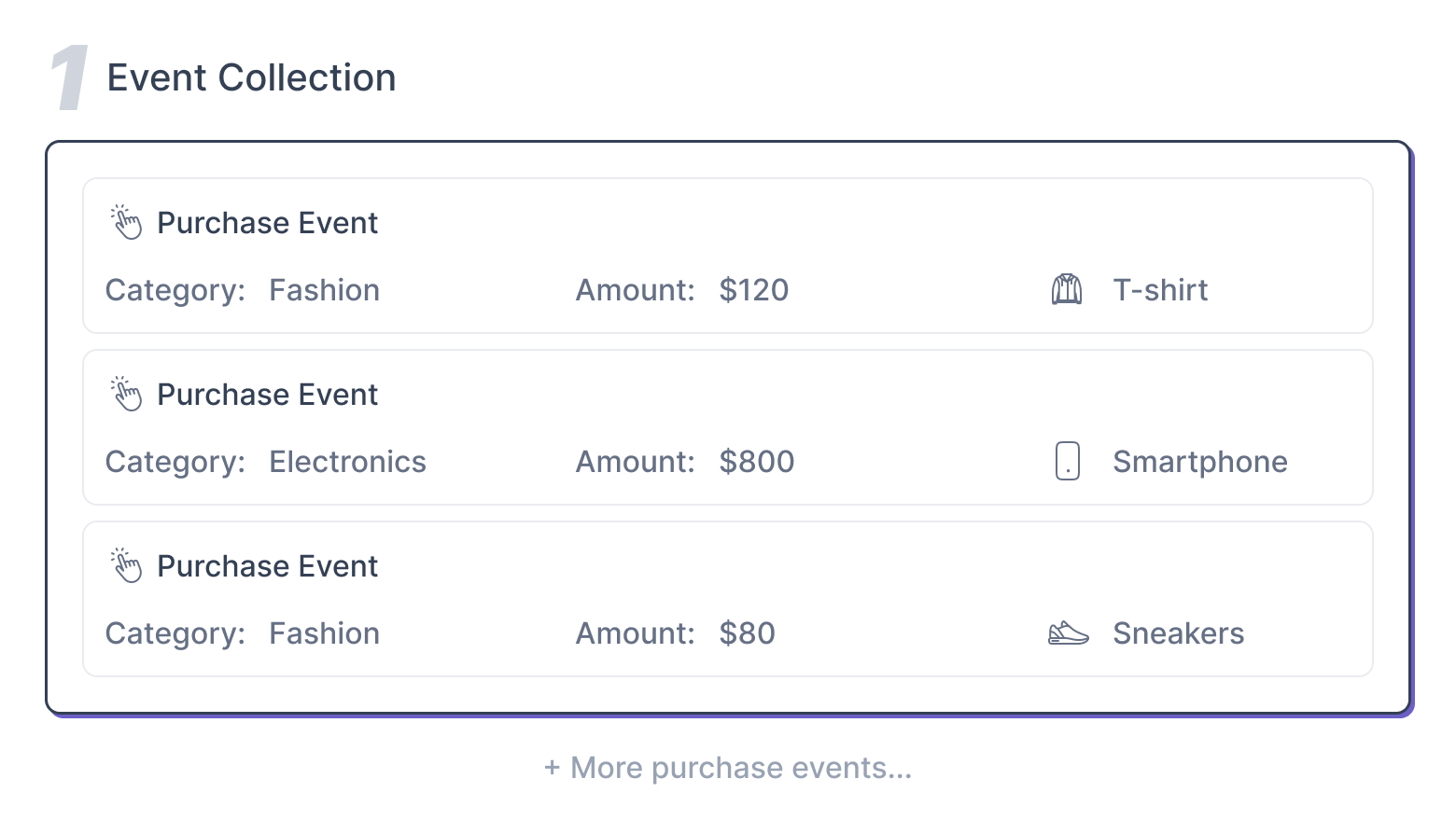
Step 1: Event Collection
The system collects all Purchase Events made by a user. Each event contains details such as:
- Category: Type of product (e.g., Fashion, Electronics)
- Amount: Value of the purchase
- Item: The specific product bought
Example Events:
- T-shirt, Category: Fashion, Amount: $120
- Smartphone, Category: Electronics, Amount: $800
- Sneakers, Category: Fashion, Amount: $80
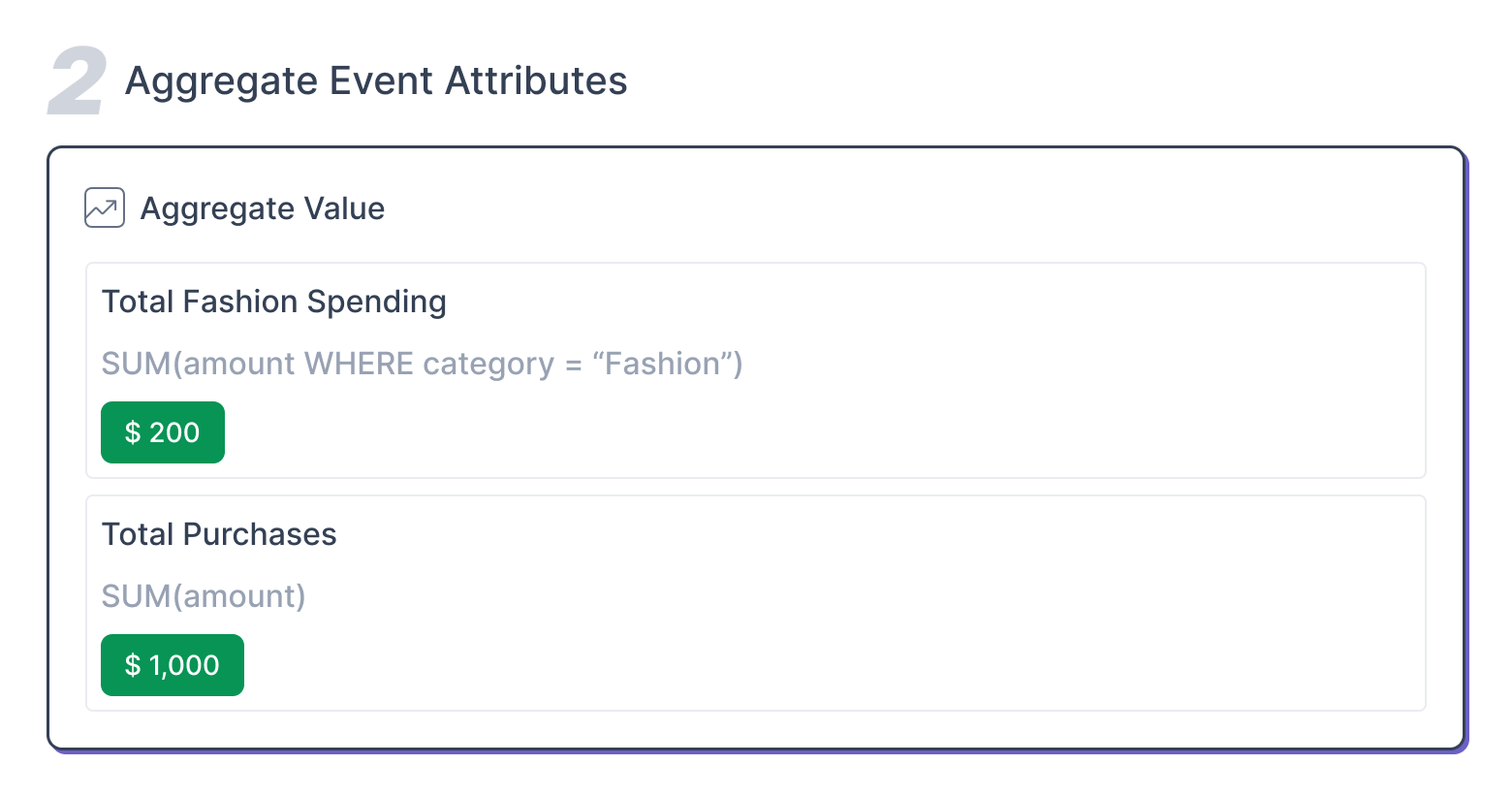
Step 2: Aggregate Event Attributes
You start by aggregating relevant event data. For example:
- Total Fashion Spending: SUM(amount WHERE category = "Fashion") = $200
- Total Purchases: SUM(amount) = $1,000
This helps collect the total amounts spent across different categories and overall purchases.
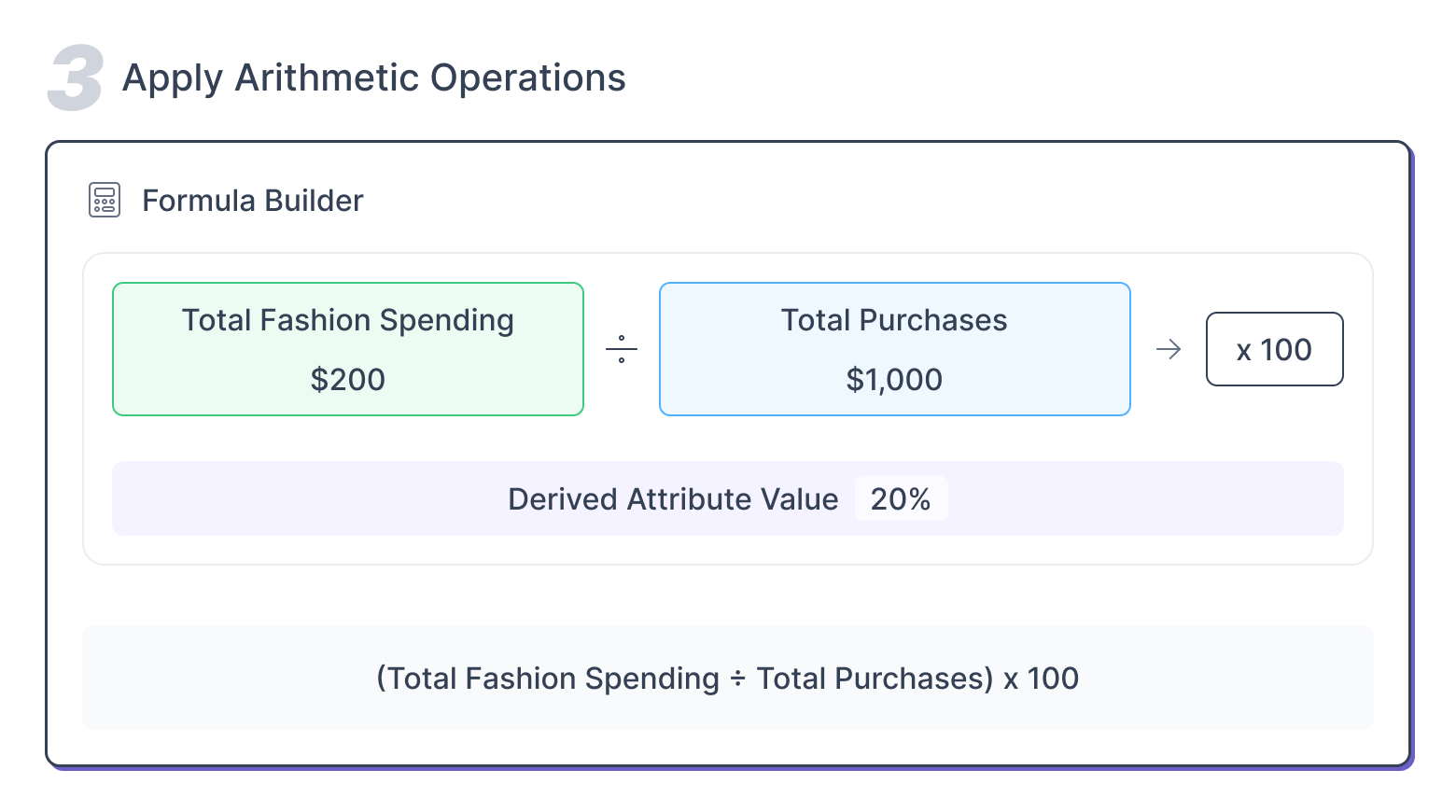
Step 3: Apply Arithmetic Operations
Next, you can use the Formula Builder to create a new metric that shows what portion of total purchases is spent on fashion.
Formula:
(Total Fashion Spending ÷ Total Purchases) × 100
Derived Value: 20%
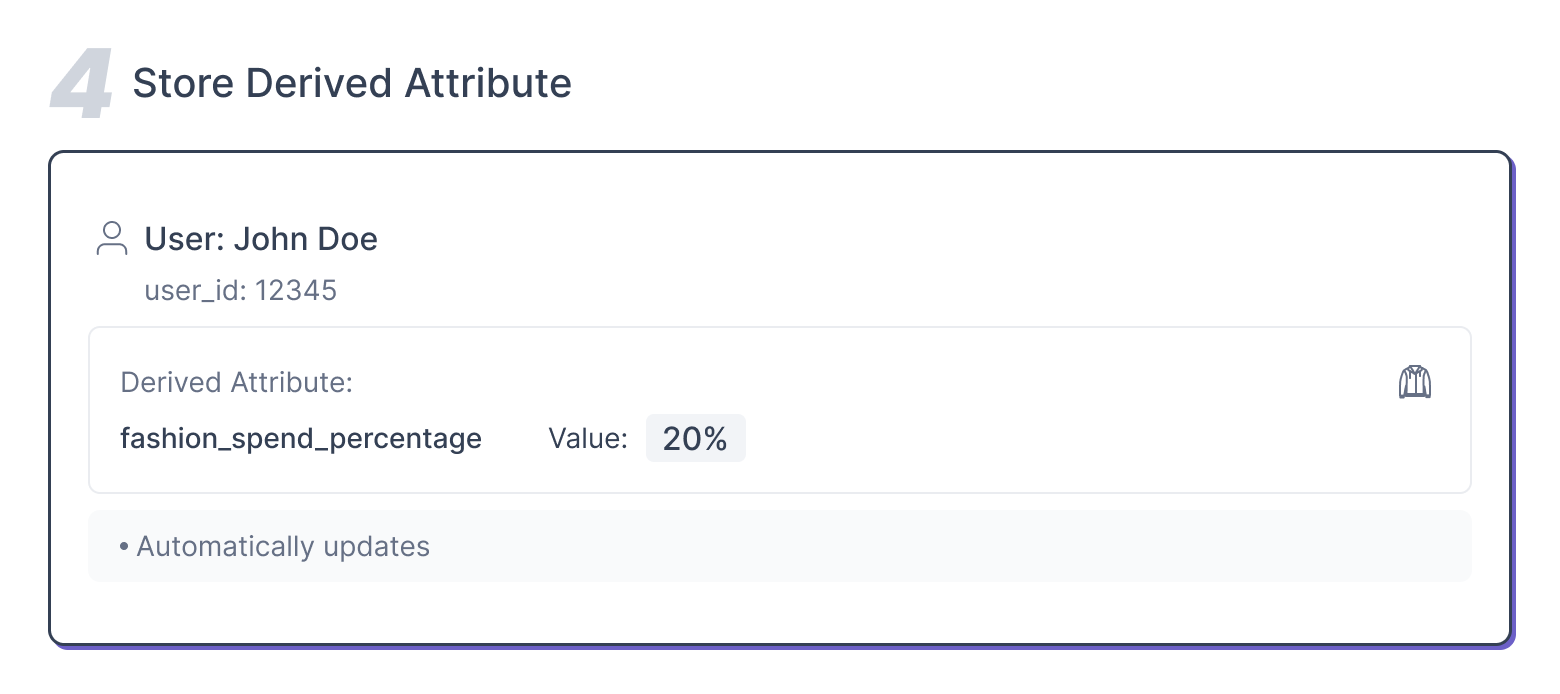
Step 4: Store the Derived Attribute
This derived value is stored as a user-level attribute, for example:
- fashion_spend_percentage = 20%
The platform automatically updates this attribute whenever new events occur, ensuring that user data stays current.
How to Create Derived Attributes?
You can start creating your derived attributes by following the steps provided below.
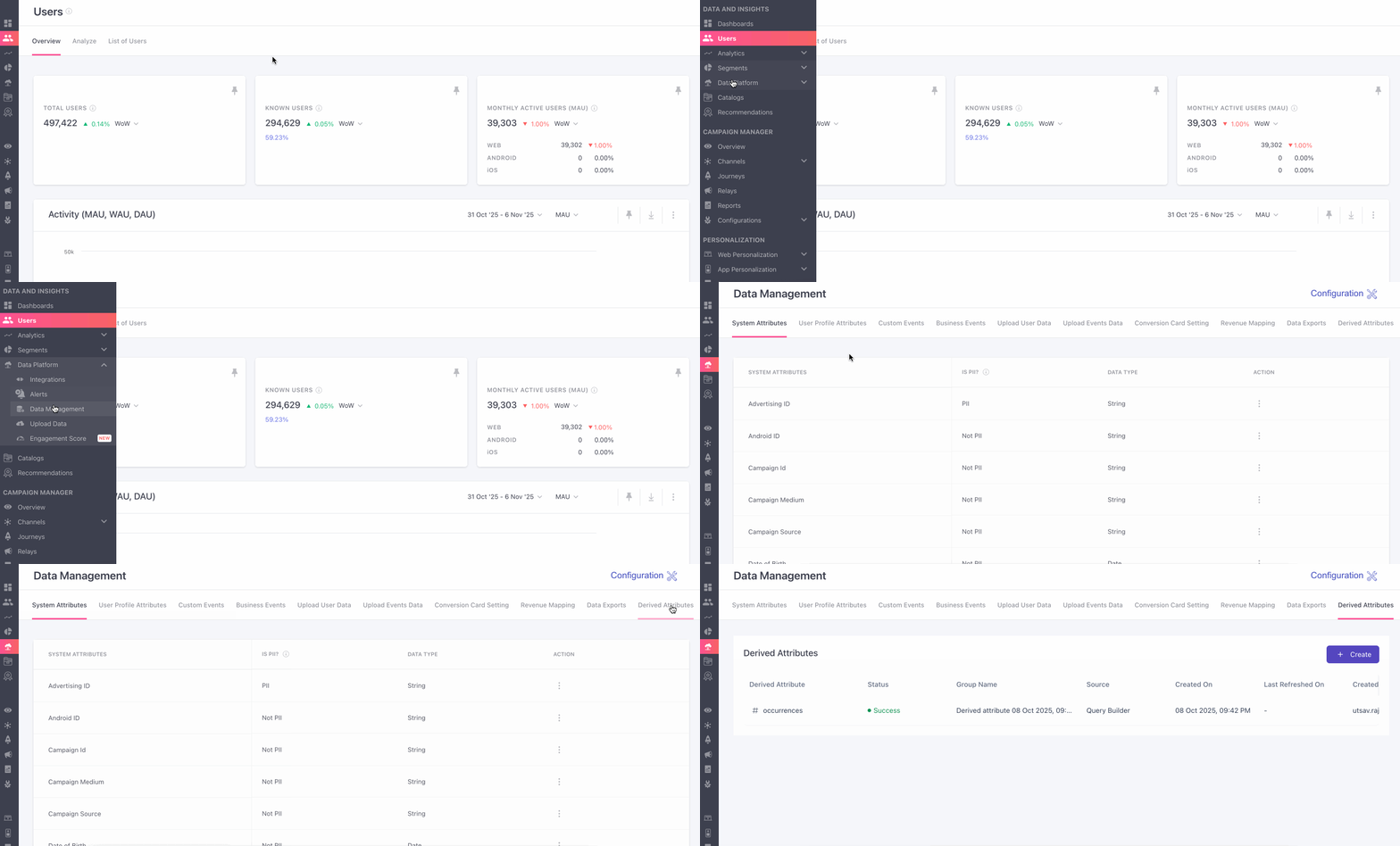
- Navigate to the Data Management under Data Platform section from the left navigation panel.
- Once you're here proceed to the Derived Attributes tab.
- Here, you can start creating your derived attributes by clicking on the ➕ on the right.
Once you're here you can proceed to creating your derived attributes based on attribute type i.e. with a Criteria Builder or an External.
Criteria Builder
The Criteria Builder allows you to create, manage, and schedule derived attributes through a simple and flexible interface. It supports creating both sub-derived attributes and calculated derived attributes using arithmetic operators and functions.
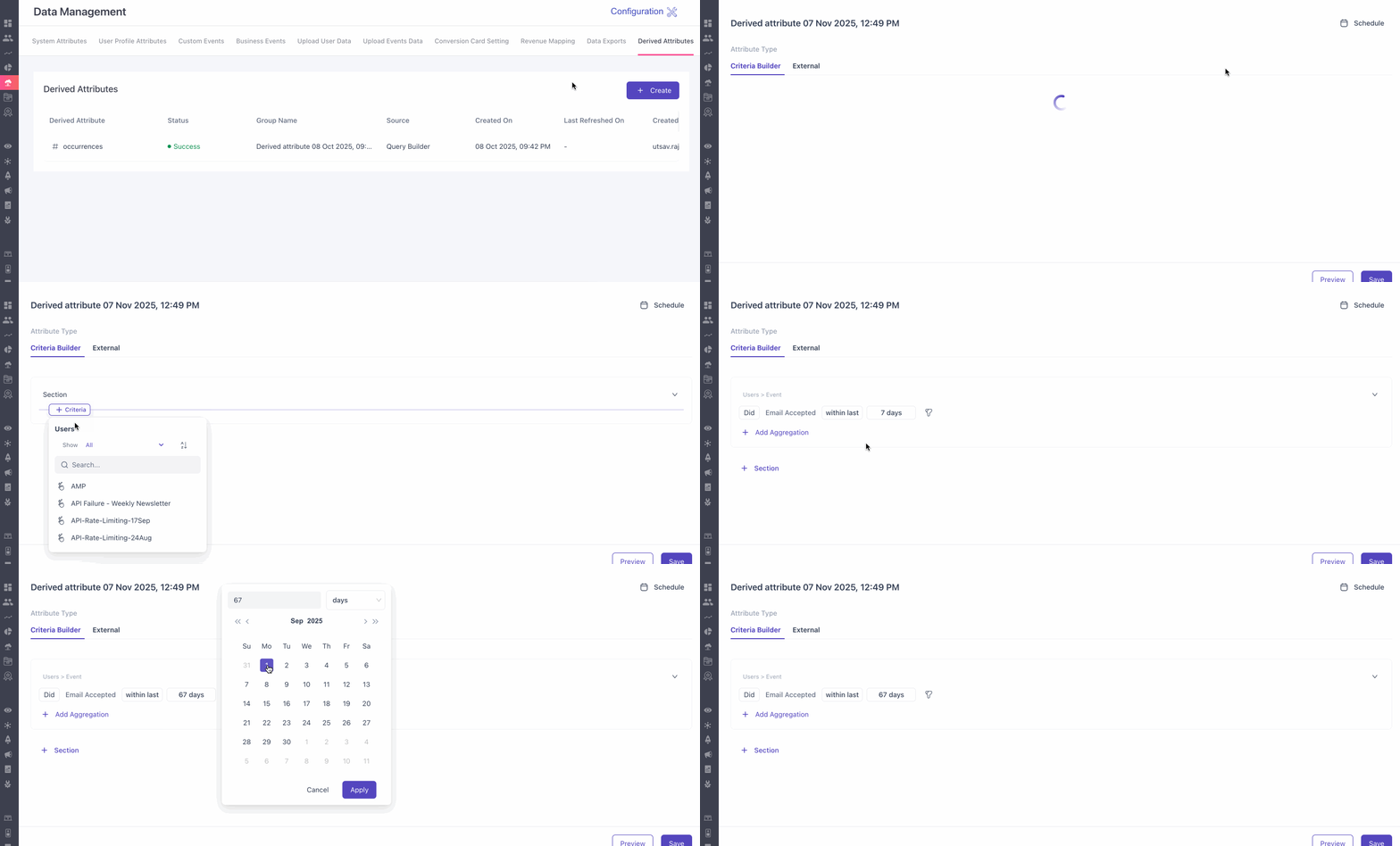
How to create derived attributes using Criteria Builder?
- Building Sub-Derived Attributes
- You can create sub-derived attributes, assign unique names, and save them. Duplicate names are not allowed within the same attribute scope.
- Sub-derived attributes can be based on:
- User Attributes
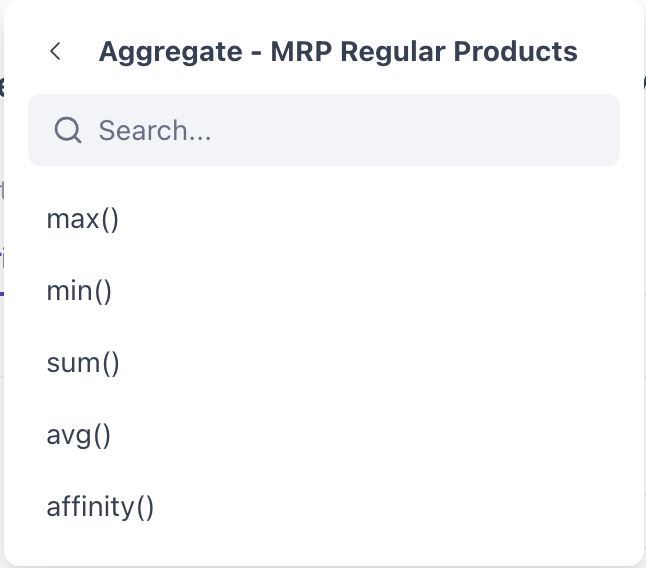
- Below aggregates on Event Attributes
- Min & Max of a numeric attribute (e.g., minimum amount spent).
- Average of a numeric attribute. (e.g. Average order value).
- Sum of numeric attributes (e.g., total spending).
- Number of Event Occurrences. (e.g. Total number of orders placed)
- Affinity (Maximum number of times a category purchased by the user) (Available for not numeric and string variables)
Note:Functions that return numeric values will return zero (0) if:
- No events are found, or
- The event exists but the attribute value is blank.
- Calculated Derived Attributes:
Create attributes by combining existing sub-derived attributes using the Calculation Logic component. Here are the calculations that are supported.
Arithmetic Operators
- Addition (+), Subtraction (-), Multiplication (*), Division (/)
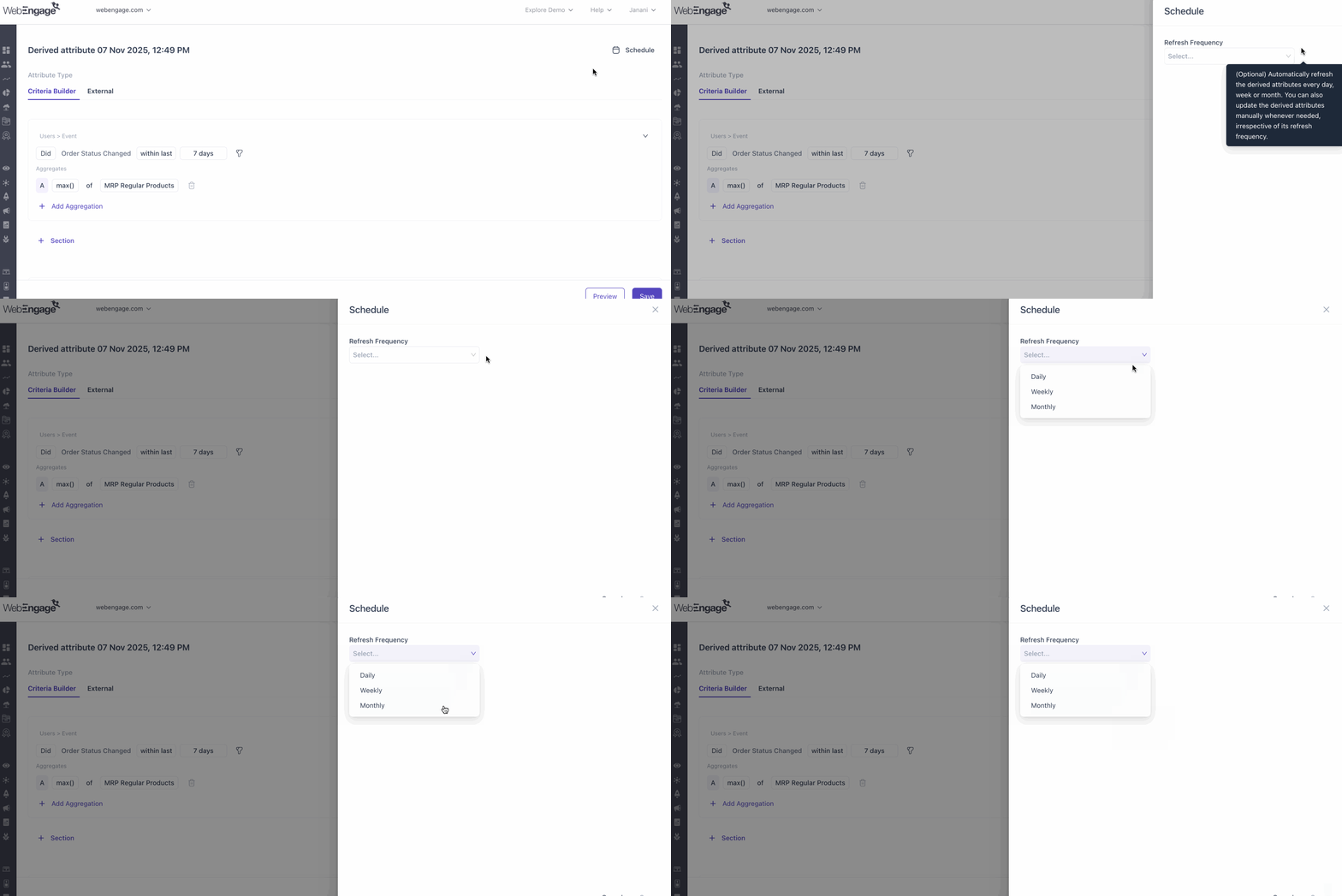
Scheduling
Derived attributes can be refreshed automatically at daily, weekly, or monthly intervals. If needed, you can also trigger a manual refresh at any time, independent of the scheduled frequency.
Editing Rules
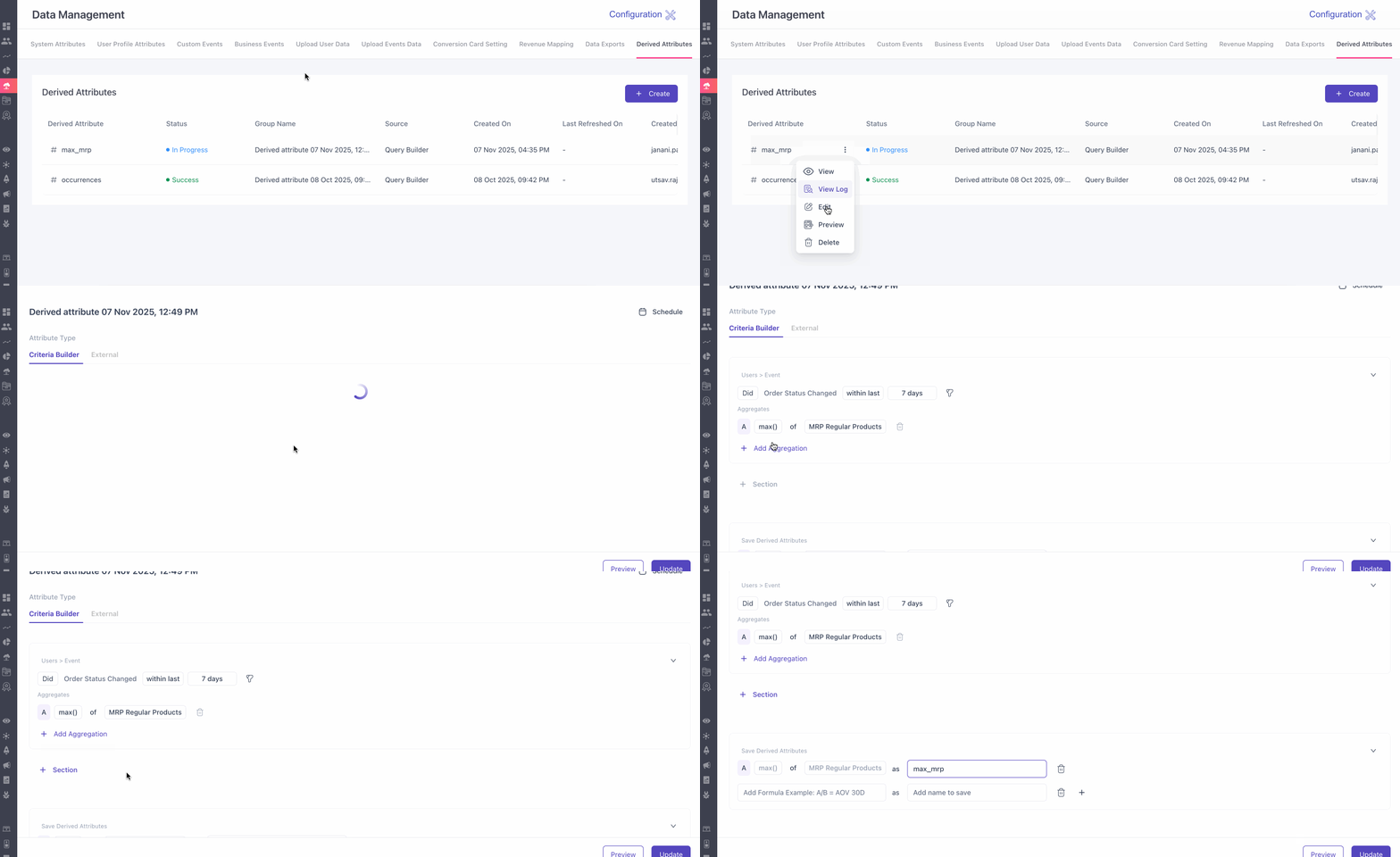
You can edit all parameters except:
- Attribute type
- Upload method
- Logic can be edited, but saved attributes cannot start returning a different data type to maintain logical consistency across usage areas like segmentation.
- Name changes are allowed, but if an attribute is used in segmentation or personalization, renaming may be restricted.
- All changes are recorded in an audit log.
Stop Refreshing(Available only for attributes created using the internal Query Builder)
- Stops refreshing the attribute.
- Displays a list of impacted segments and personalizations to help users make informed decisions.
Deletion Rules
Deletion is blocked if the attribute is currently in use in segmentation, journeys, or campaigns.
Duplicating
(Available only for attributes created using the internal Query Builder)
Creates a copy with "_copy" added to the name.
View Logs
View complete audit logs for each derived attribute, including modification history and user actions.
Visibility in User Profiles
- Derived attributes appear on the user profile page.
- Attributes from the same group are displayed together.
- Naming format:
[Group Name].[Attribute Name]
Uploading Custom Derived Attributes
Upload the file from your device and create your derived attributes.
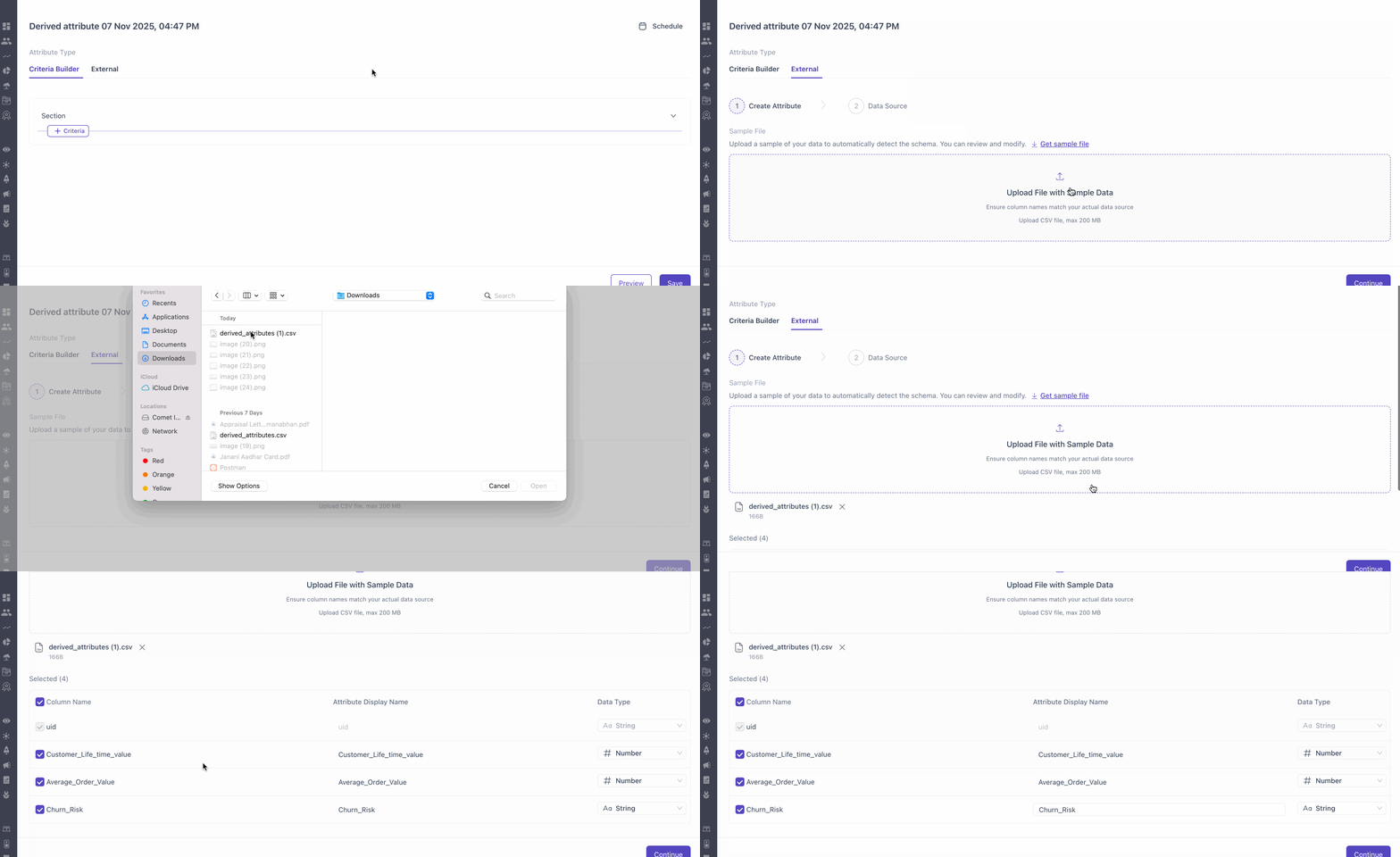
You can upload your files in the following types:
- Full Upload - Replaces the entire dataset (once a month).
- Delta Upload - Updates changed records (1-4 times per day, with a minimum 6-hour gap).
You can also set a schedule upload. This will automatically pick files from one of the sources mentioned below at the specific schedule.
- AWS
- SFTP / FTP
- HTTP / HTTPS
Your file will get rejected if:
- the File-level violations (size, column, or record limits) then the entire file gets rejected.
- Record-level errors then only the faulty records are rejected.
Affinity Function
The Affinity() function identifies the value that appears most frequently within a selected attribute. This helps understand what your user prefers or interacts with most often. This function supports String and Numeric data types.
Use Case: Personalized Recommendations Based on User AffinityEvery user has unique tastes when it comes to products. By tracking what colors and categories each user interacts with, you can understand their preferences and use that data to deliver more relevant recommendations. This approach helps create a personalized shopping or browsing experience that feels tailored to each individual.
How It Works?
- Create Affinity for Color and Category:
Track what colors and product categories a user interacts with most. For example, if a user often views blue shirts or black shoes, the system builds an affinity (preference) for those colors and categories.- Identify Products Using Collections:
Use collections to group products based on these affinities. This helps the system easily find products that match each user’s top preferences.- Send Personalized Items:
Recommend or promote products that align with these affinities. The user will see items that match their tastes, making the experience more relevant and engaging.Example:
If a user usually browses pastel-colored dresses, the system understands this pattern. The next time you run a campaign, it can automatically suggest pastel dresses or similar items the user is likely to prefer.
How It Works
When multiple values share the highest frequency, any one of the top values may be returned.If the result is a string, it cannot be used inside formulas, as calculations require numeric values.
Example
| Purchase Event | Category |
|---|---|
| 1 | Shoes |
| 2 | T-Shirts |
| 3 | T-Shirts |
| 4 | Caps |
| 5 | T-Shirts |
Result:
Affinity(category) = T-Shirts (appears 3 times)
Availability
Derived Attributes can currently be used in the following areas of WebEngage:
- Segmentation
- Personalization
- User Profiles
Derived Attributes are not currently available in other parts of the platform.
Updated 3 months ago